Metadata

  • Date :: 11-04-2025
  • Tags :: web-dev

Notes

🌐 How Websites Work – Detailed & Elaborative Notes

🎬 Introduction

  • Host: Angela Yu from The App Brewery

  • Context: This is a continuation from a previous lesson where we learned how the Internet works — how clients and servers communicate through IP addresses using the DNS system.

  • Focus of this lesson: Understanding how websites actually function, and how browsers and various web files (HTML, CSS, JavaScript) come together to render your favorite websites.

🧠 Recap: Internet Fundamentals

Before diving into how websites work, here’s a quick reminder of a few key terms:

  • Client: Your computer or smartphone requesting a web page.

  • Server: A computer that hosts websites and responds to client requests.

  • DNS Server: Translates a domain name like google.com into an IP address like 142.250.72.206.

Once the browser has the server’s IP, it can send a request to receive the website’s files.

🧾 What Are Websites Made Of?

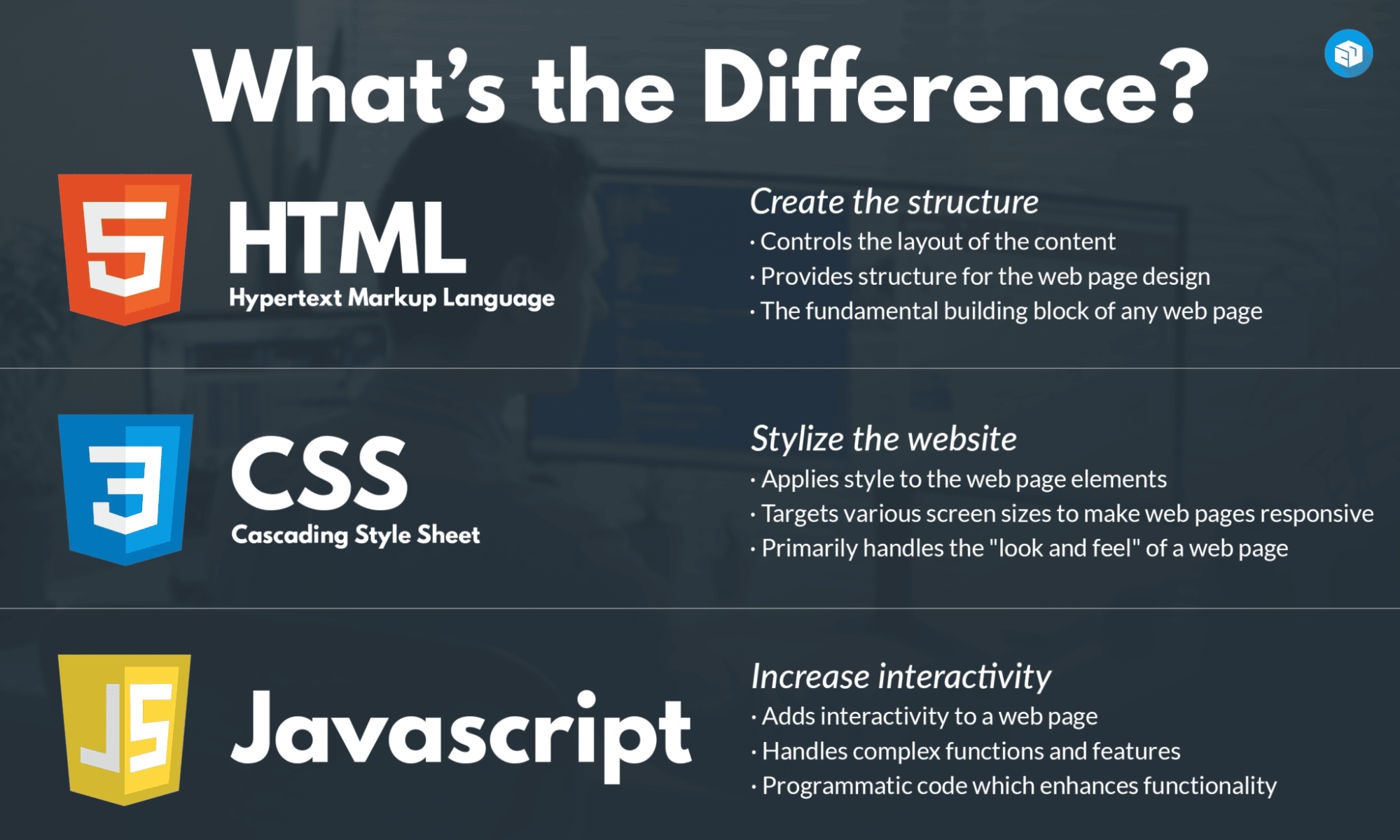
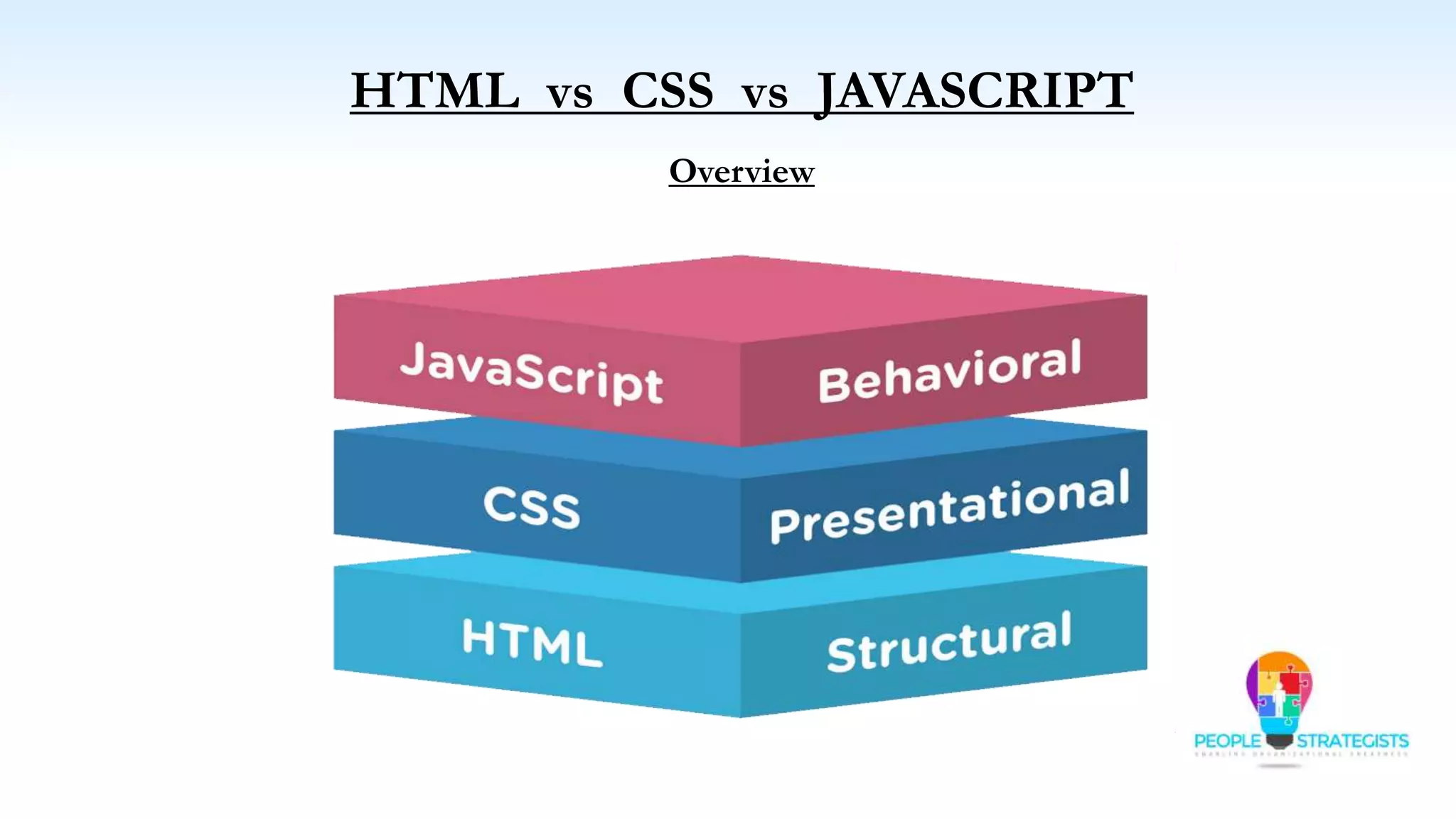
Websites aren’t just one single file. They’re made up of three core types of files, each serving a different purpose:

1. 🧱 HTML – HyperText Markup Language

Role: Structure and content of the website
Analogy: Bricks and framework of a house

  • HTML is the foundation of every webpage.

  • It defines:

    • Headings

    • Paragraphs

    • Images

    • Links

    • Buttons

    • Forms

  • Think of HTML as the skeleton — it gives shape and structure to the webpage.

📝 Example:

<h1>Welcome to Angela's Blog</h1>
<p>This is a paragraph of text.</p>
<button>Subscribe</button>

2. 🎨 CSS – Cascading Style Sheets

Role: Styling and layout of the website
Analogy: Paint, wallpaper, furniture, and decor in a house

  • CSS enhances the visual presentation of HTML content.

  • It controls:

    • Colors

    • Fonts

    • Layouts (e.g., grid or flexbox)

    • Button styles

    • Animations and transitions

  • With CSS, you make your content look appealing and brand-aligned.

📝 Example:

button {
  background-color: red;
  border-radius: 10px;
  font-family: 'Arial';
}

3. ⚙️ JavaScript (JS)

Role: Functionality and interactivity of the website
Analogy: Electricity and appliances — lights that turn on, a doorbell that rings, a fan that spins

  • JavaScript turns static HTML/CSS into interactive and dynamic websites.

  • It enables:

    • Form validation (e.g., checking your email is valid)

    • Button clicks

    • Dropdown menus

    • Popups and alerts

    • Sending and receiving data without reloading the page (via AJAX or Fetch)

  • JavaScript is what makes modern web apps like Gmail or Instagram functional.

📝 Example:

document.querySelector("button").addEventListener("click", function() {
  alert("You clicked the button!");
});

🧠 Example: Breaking Down the Google Homepage

Let’s take a look at what happens when you visit google.com:

  1. The browser receives three main files:

    • index.html – Contains the search box, buttons, and image of the logo.

    • styles.css – Controls how the page looks: white background, centered elements, blue buttons.

    • main.js – Adds behavior: allows typing in the box, pressing “Search”, and handling the search request.

  2. The browser loads the HTML first, then applies the CSS to style it, and finally runs the JavaScript to make it functional.

💡 Try searching for “Google in 1998” on Google — it’s a fun Easter egg!

🧰 The Role of the Browser

A browser (like Chrome, Firefox, Safari) is a specialized piece of software designed to:

  • Understand and process HTML, CSS, and JavaScript files

  • Render (display) the website visually for the user

  • Manage interactions, cookies, security, and more

The browser takes the files it receives and:

  1. Builds the webpage using HTML

  2. Styles it with CSS

  3. Adds interactivity using JavaScript

🧪 Hands-On Exploration with Chrome Developer Tools

Google Chrome offers built-in tools to inspect and modify websites — great for developers.

🔧 How to Inspect Elements:

  1. Go to a website (e.g., google.com)

  2. Right-click on any element (e.g., the “Google Search” button)

  3. Click “Inspect”

This opens Chrome Developer Tools, where you can:

  • View the exact HTML and CSS of the page

  • Edit live HTML (e.g., change “Google Search” to “Angela Search”)

  • Modify CSS styles

  • Debug JavaScript

  • Analyze performance

🧠 Note: These changes are temporary and local only.

  • When you refresh the page, the original website files are reloaded from the server.

  • Your edits disappear unless you save them into a real HTML/CSS/JS project.

🕹️ Fun Use Case – Pranking Friends

  • You can use Dev Tools to change headlines on news sites like TechCrunch or BBC.

  • This doesn’t affect the real site, but it looks convincing in screenshots or screen shares.

  • Great harmless fun — but always use it responsibly.

🔁 Why Edits Disappear After Refresh?

When you refresh a page:

  • Your browser re-fetches the HTML, CSS, and JS files from the server.

  • Since Dev Tools changes were only made on your local copy (in your browser memory), they are not permanent.

To make permanent websites, you’ll need to:

  • Write and save real code files

  • Host them on a server

  • Share them using a domain and IP address

🧾 Summary Table: The Web Files

File TypePurposeAnalogyExample
HTMLStructure, ContentBricks, WallsHeadings, Paragraphs, Images
CSSStyling, DesignPaint, WallpaperColors, Fonts, Layouts
JavaScriptBehavior, LogicElectricity, AppliancesForm validation, Click events

References